Latest v1.9.0 · free & open source

The terminal built for
network engineers

SSH, Telnet and Serial in one fast app. Command lists for every vendor you touch, hints as you type, split panes, broadcast to many devices, a credential vault, Python automation and a safe way to let an AI assistant help — on Windows, macOS and Linux.

GPL-3.0 · no account needed · no telemetry

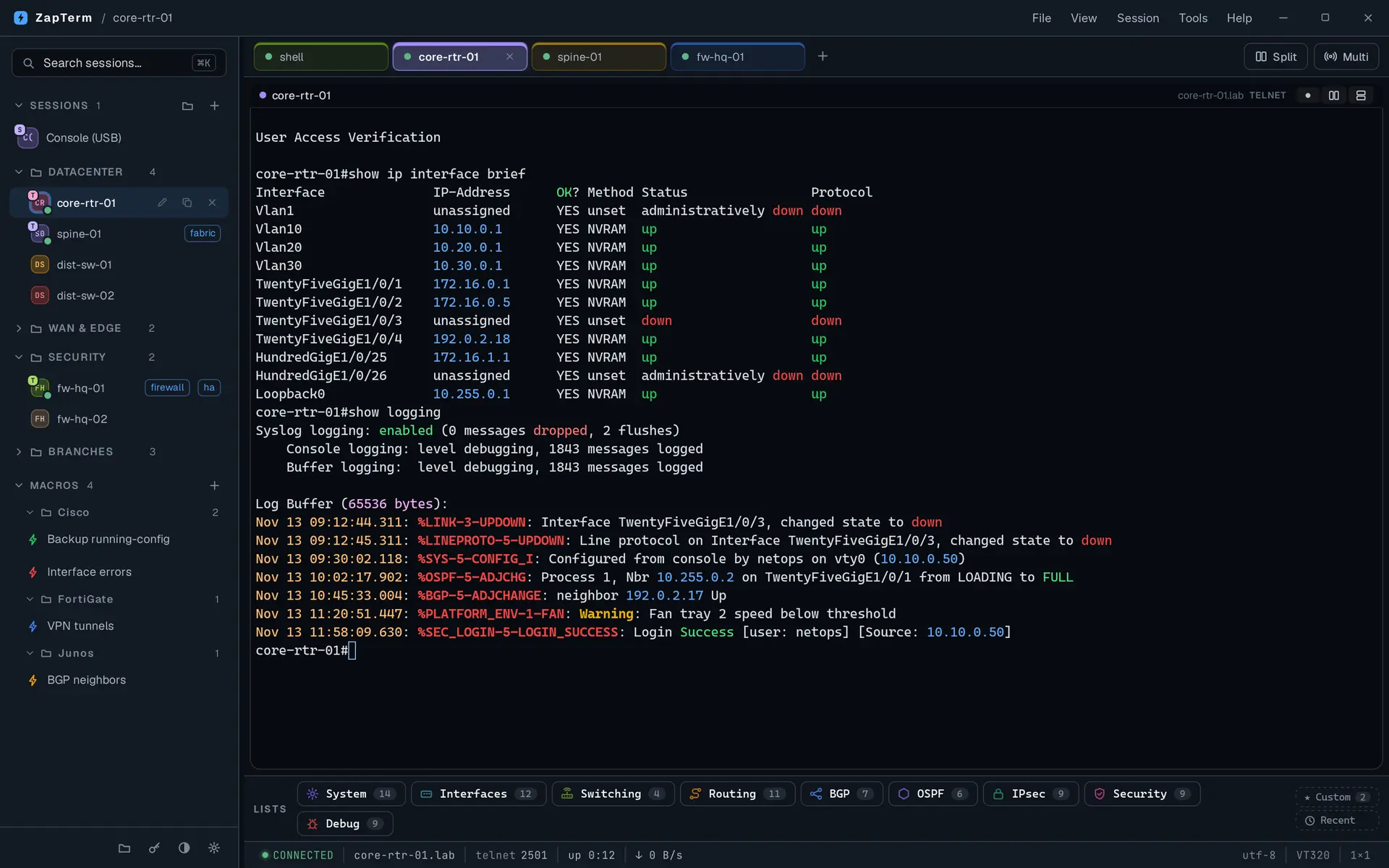
ZapTerm with four tabs open: a Cisco router's interface list and syslog highlighted in color (up in green, down in red, IP addresses, dates and severities), the session sidebar with folders and tags, and the Cisco command lists at the bottom with Custom and Recent at the right.

Command lists and hints that know your gear

  • Cisco IOS / IOS-XE
  • Cisco IOS XR
  • Arista EOS
  • Juniper Junos
  • FortiGate
  • Linux
  • macOS
  • Windows PowerShell
  • FortiManager
  • FortiAnalyzer

Features

Everything a long day on the CLI needs

Built around the work itself: the commands you type every day, many devices at once, credentials kept safe and repetitive work automated.

Command lists

The right command, one click away

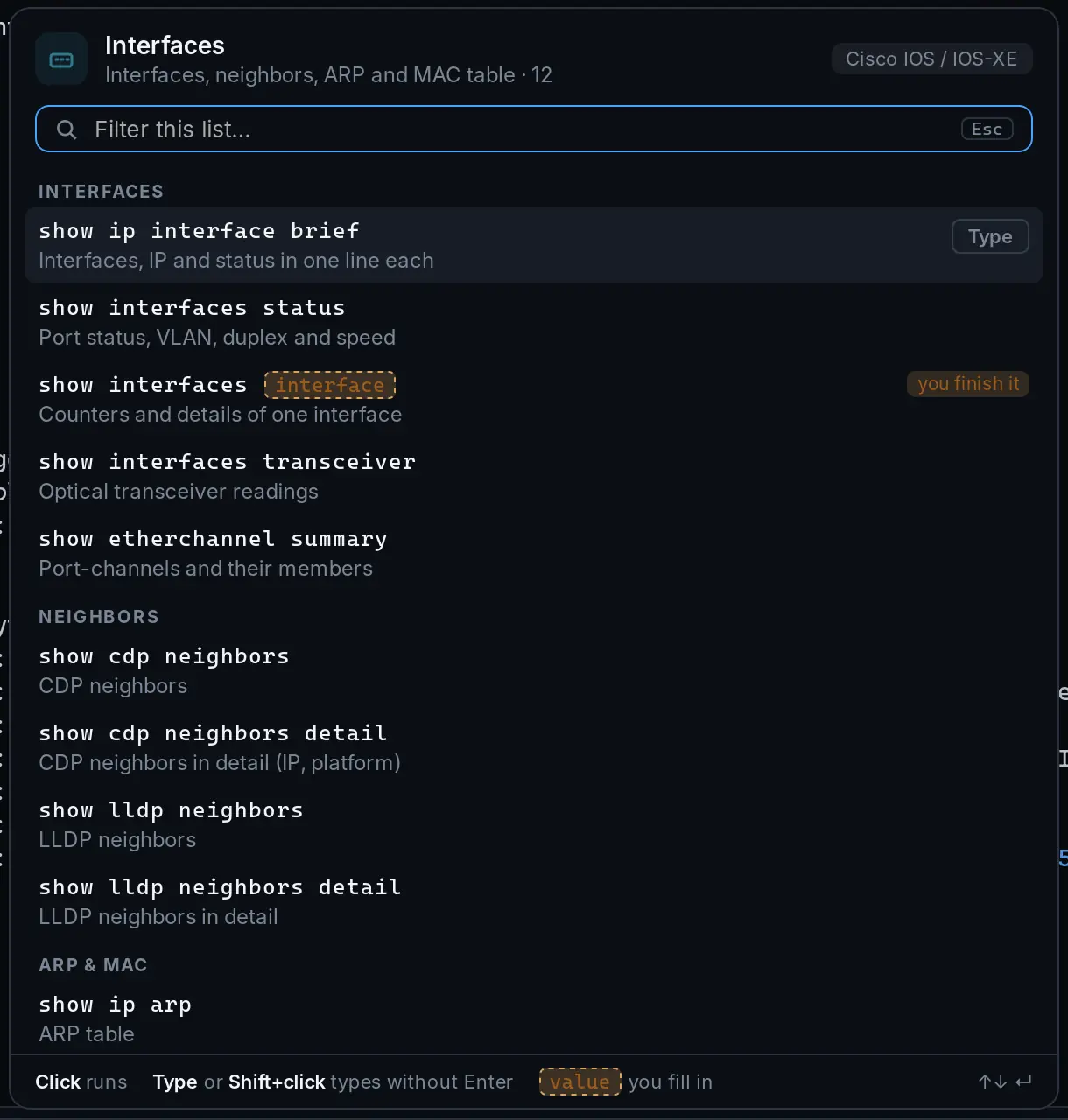
ZapTerm detects the platform from the prompt and shows that vendor's command lists under the terminal: interfaces, routing, BGP, OSPF, IPsec, HA, security, debug… Click to run, or press Type to put the command at the prompt and finish it yourself. Placeholders like <interface> are left for you to fill in.

  • Lists for Cisco IOS & IOS XR, Arista, Junos, FortiGate, Linux, macOS and PowerShell
  • FortiGate lists follow the device's release: FortiOS 7.2, 7.4 and 7.6, read from get system status
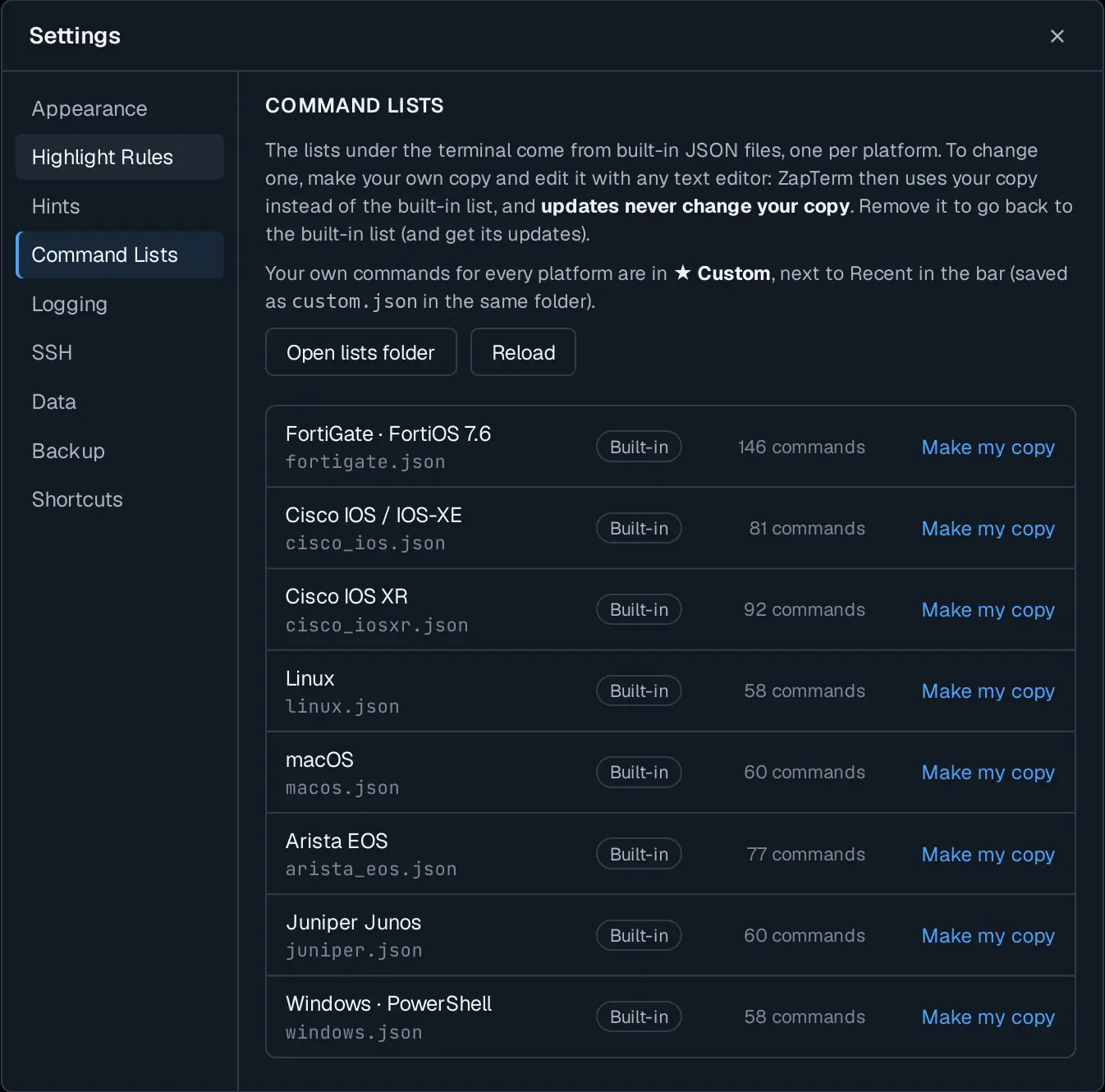
  • Every list is a JSON file: make your own copy and edit it — updates never overwrite it
  • ★ Custom: your own commands, the same on every platform, next to Recent
  • Filter any list as you type
The Interfaces command list for Cisco IOS: show ip interface brief, show interfaces status, CDP and LLDP neighbors, each with a short description and a Type button.
Settings, Command Lists: one row per platform (FortiGate, Cisco IOS, IOS XR, Linux, macOS, Arista, Junos, PowerShell) with its command count and a Make my copy link.
Hints

Ghost-text hints as you type

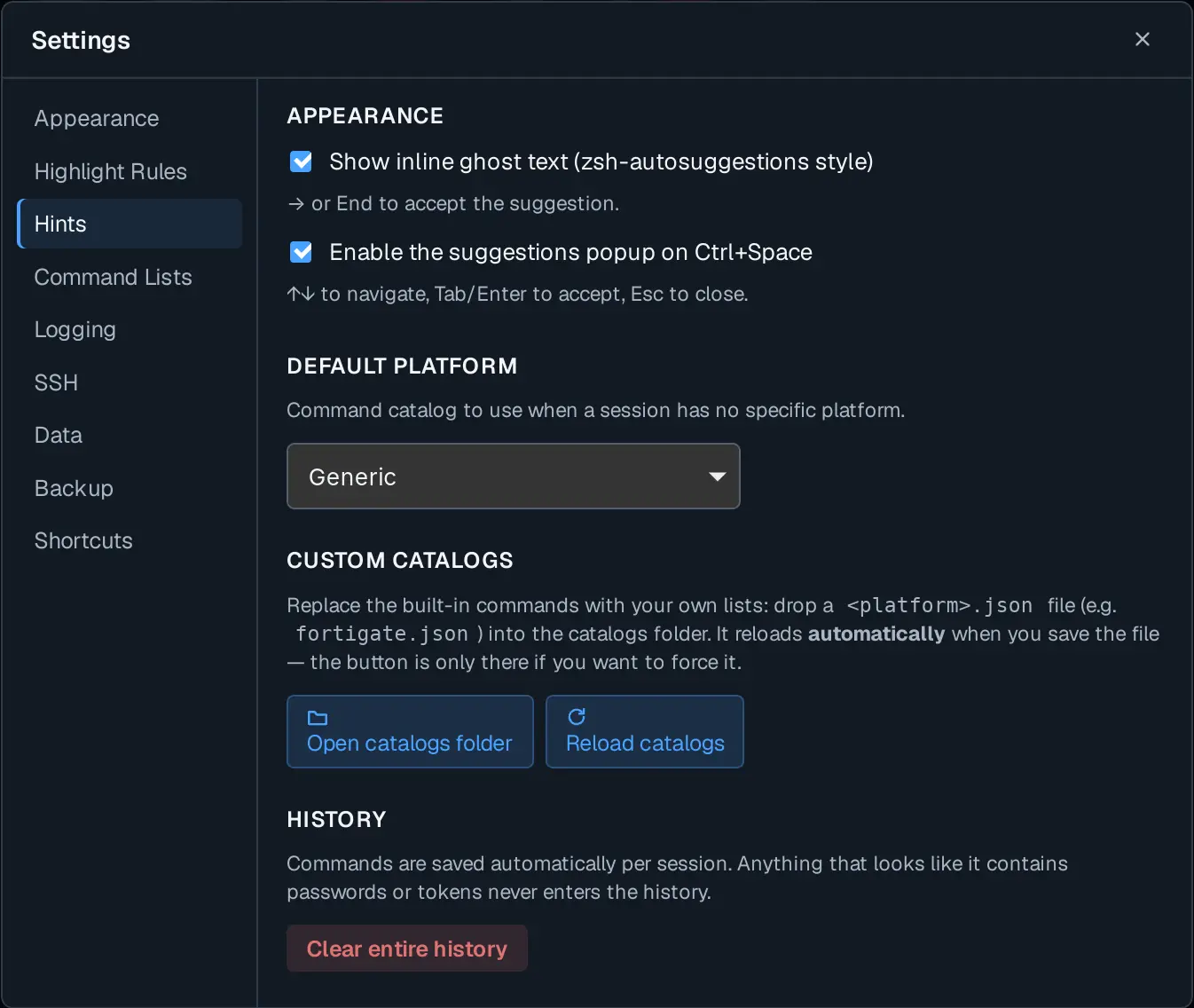
Start typing and ZapTerm suggests the rest in grey — from your own history and from built-in catalogs for 9 platforms. Press → to accept, or Ctrl+Space for the full list. Passwords typed at a prompt are never recorded.

A Cisco prompt where 'show ip ' is typed and ZapTerm suggests 'bgp summary' in grey.
Workspace

Split panes, broadcast and compare

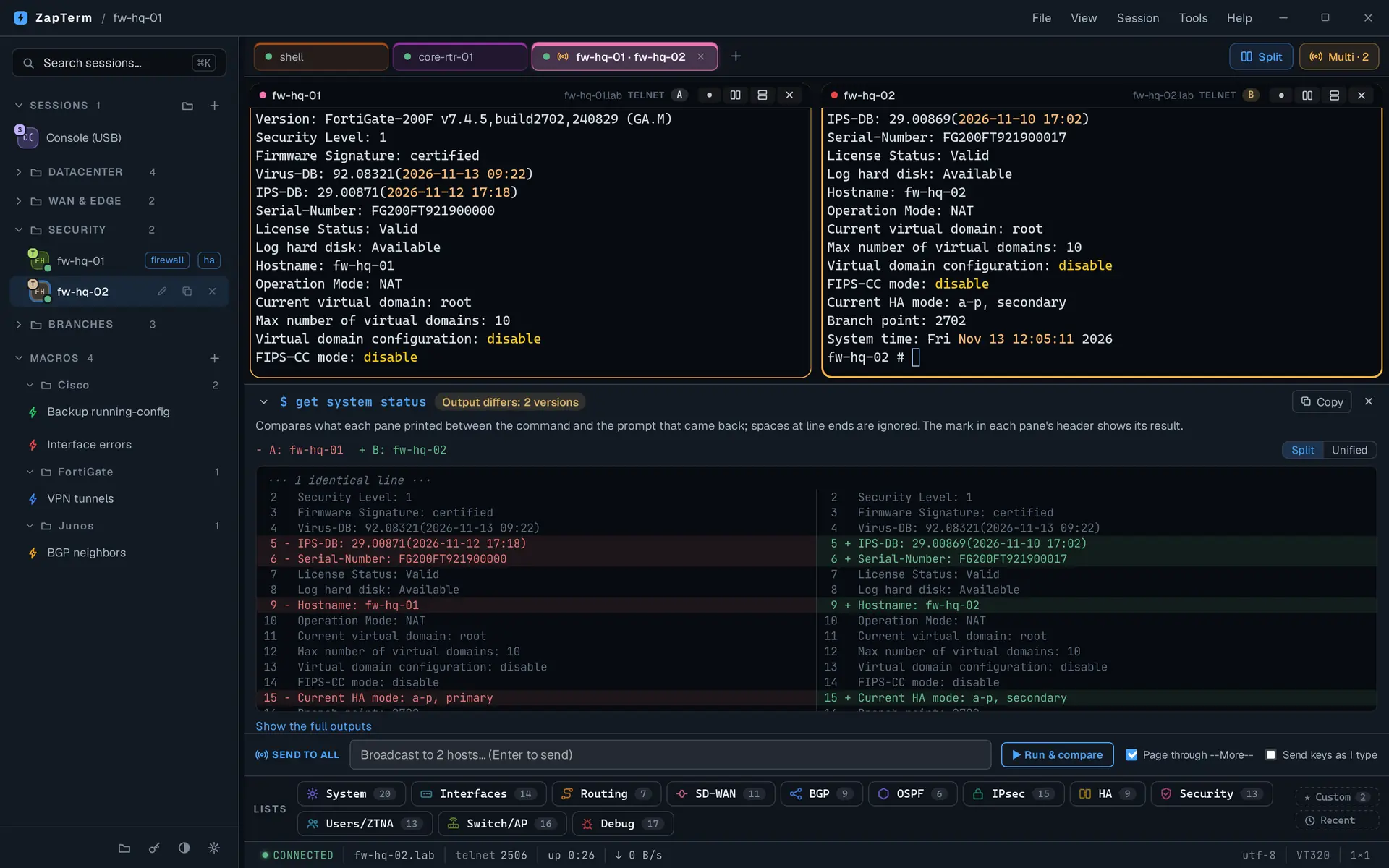
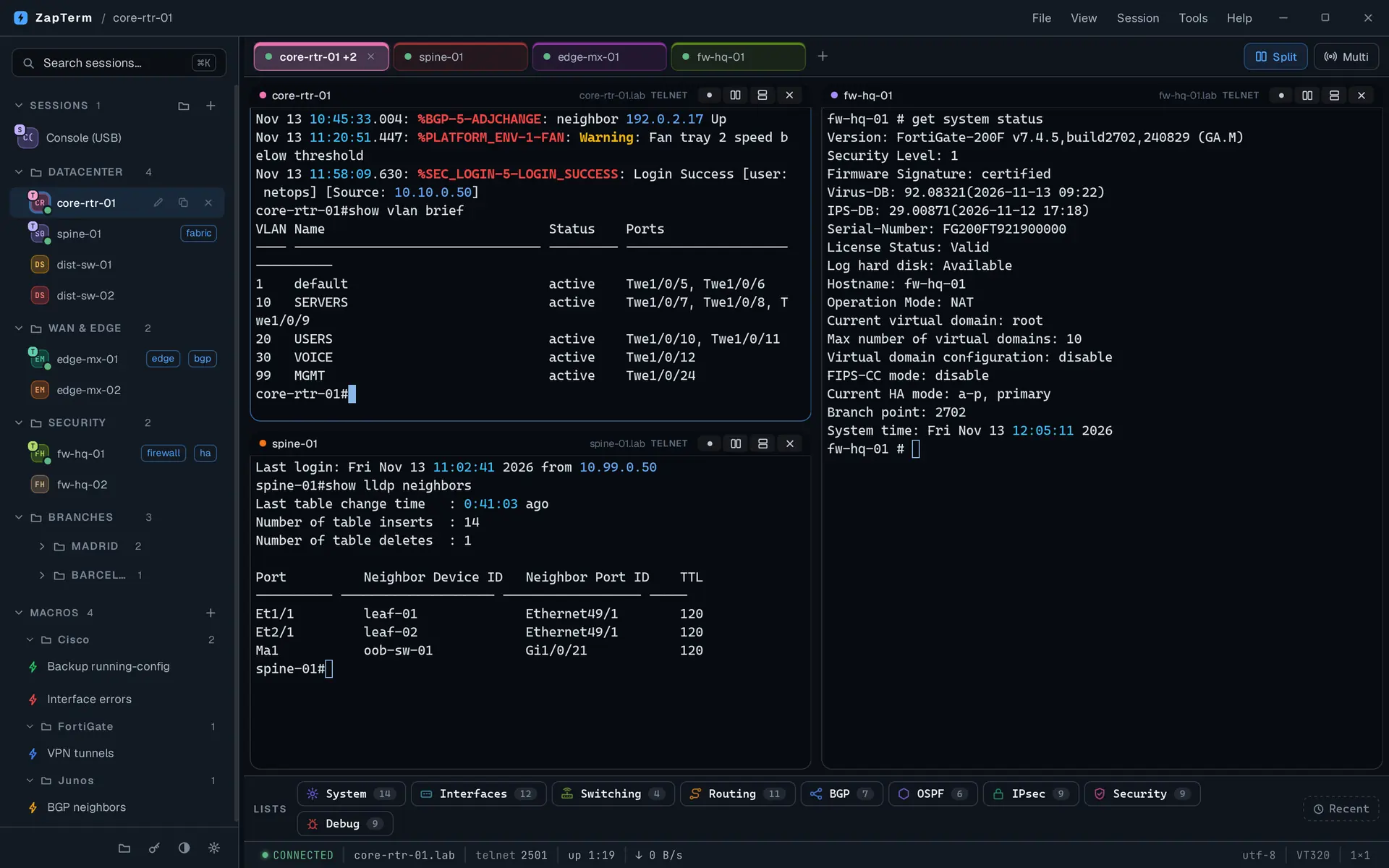
Split any tab into panes and watch a router, a switch and a firewall side by side. Turn on Multi and the SEND TO ALL bar types the same command in every pane of the tab. Run & compare then tells you whether they all answered the same — and shows the differences side by side when they didn't.

  • Each pane is marked =, A or B: which answer it gave
  • Pages through --More-- for you, so nothing is compared cut short
  • Broadcast groups open many hosts as a grid
  • Command palette (Ctrl+K) for sessions and actions
Two FortiGates of an HA pair side by side with Multi on. Run & compare of 'get system status' says Output differs: 2 versions, marks the panes A and B, and shows the four lines that differ side by side: IPS database, serial number, hostname and HA role.
Highlighting

Output that reads itself

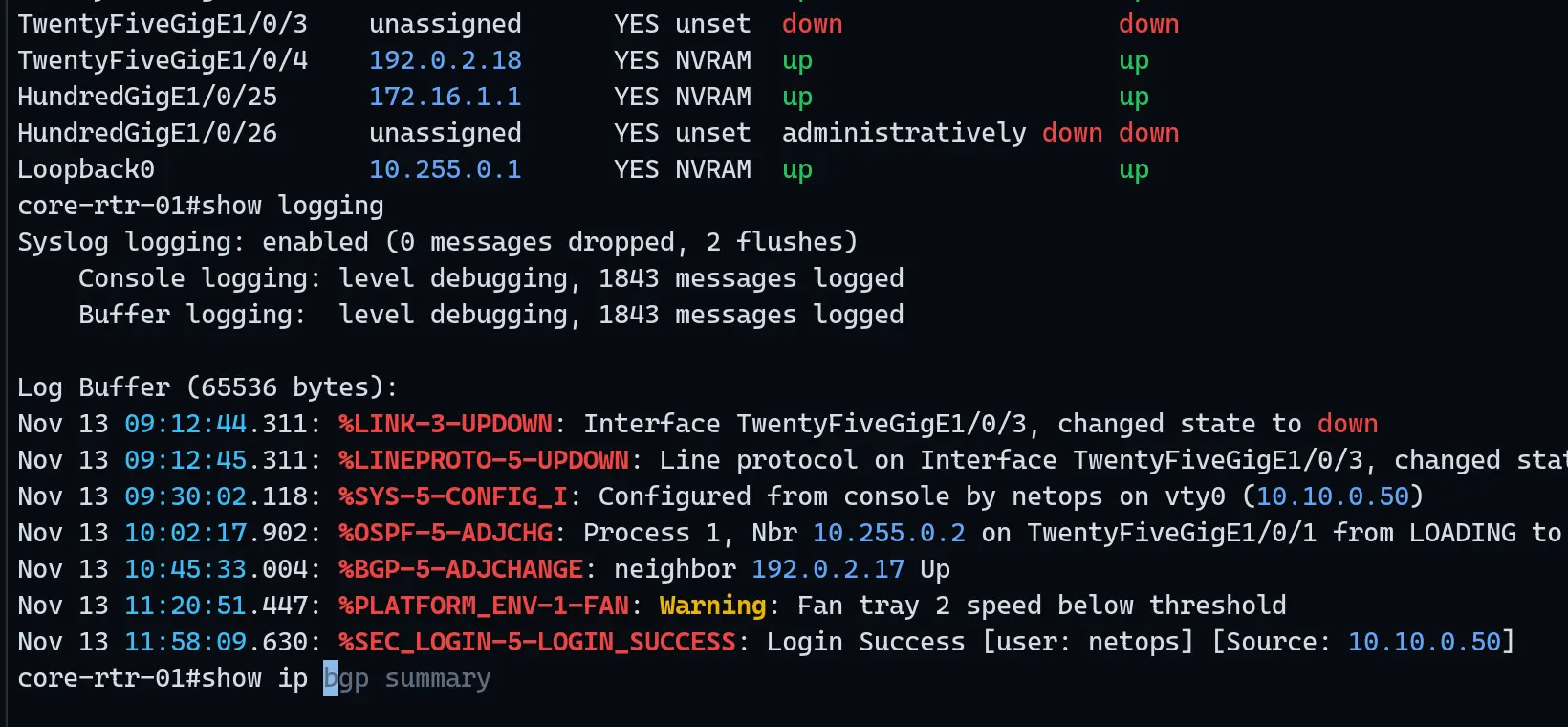
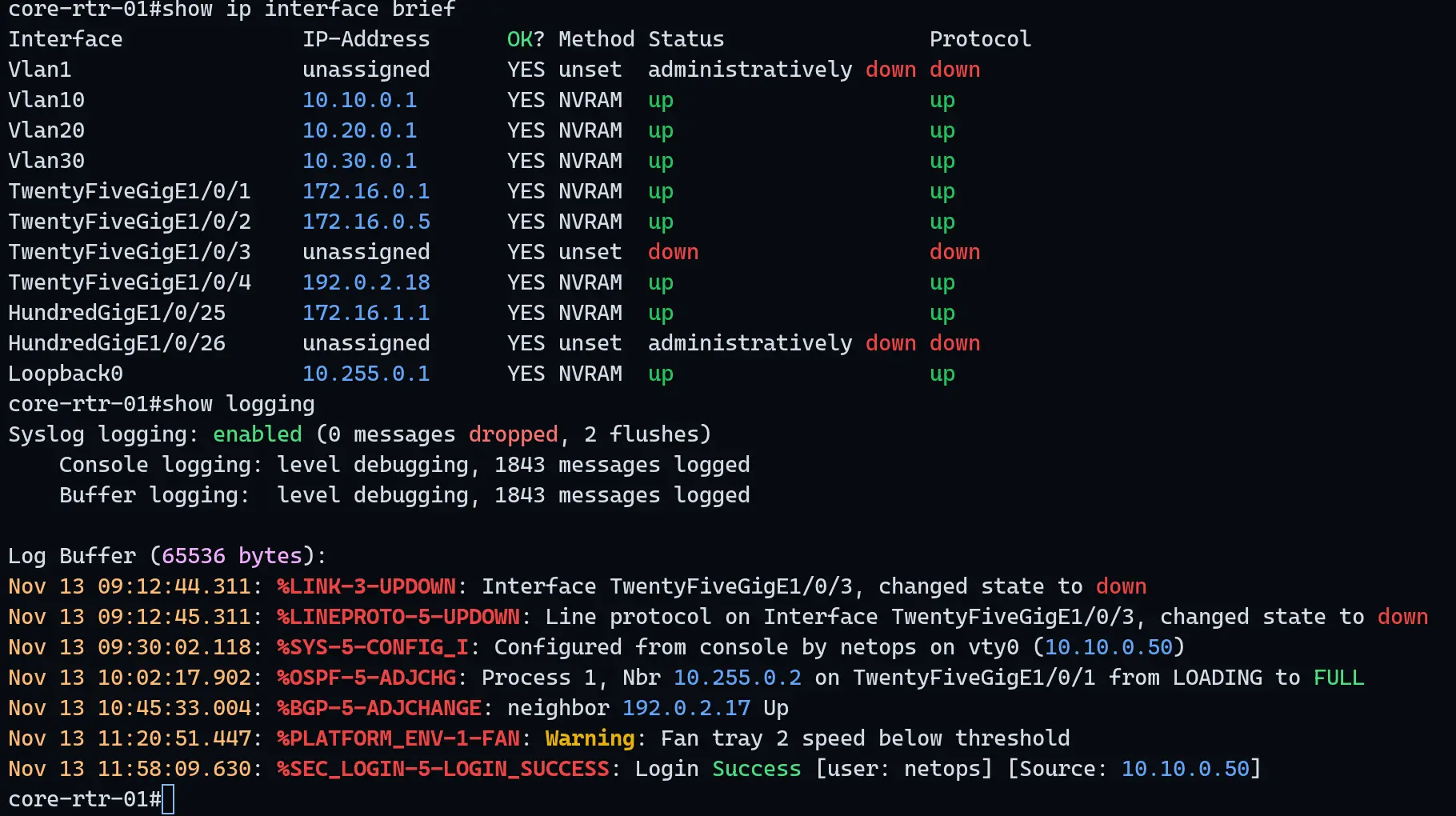
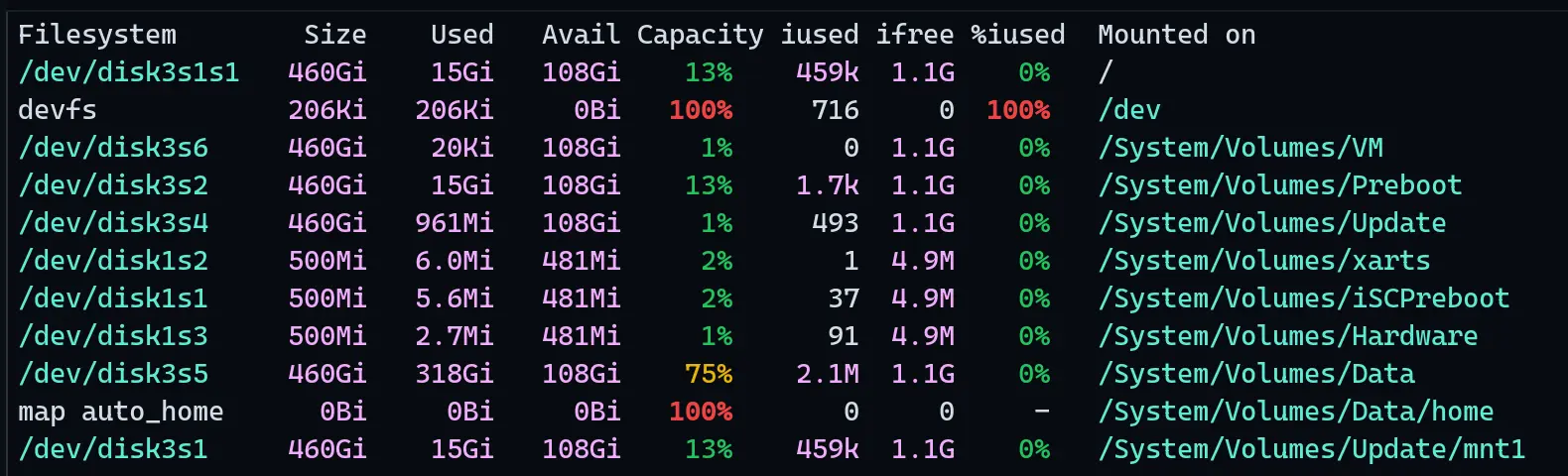
up in green, down in red, IP addresses, MACs, syslog severities, dates and times picked out at a glance — on SSH, Telnet, serial and local tabs alike. Usage percentages change colour as they fill up, sizes like 15Gi or 10Gbps stand out, and words such as errors, timeout or Established say how things are going. Every rule is a regex you can edit, and export or import as JSON to share with your team.

A Cisco router's show ip interface brief and show logging: up in green, down in red, IP addresses in blue, syslog mnemonics in red, dates and times in orange, Warning in yellow and Success in green.
macOS df -h output: usage percentages in green, yellow and red by level, sizes like 460Gi and 1.1G in pink, and paths in teal.
Sessions

Every device, organised

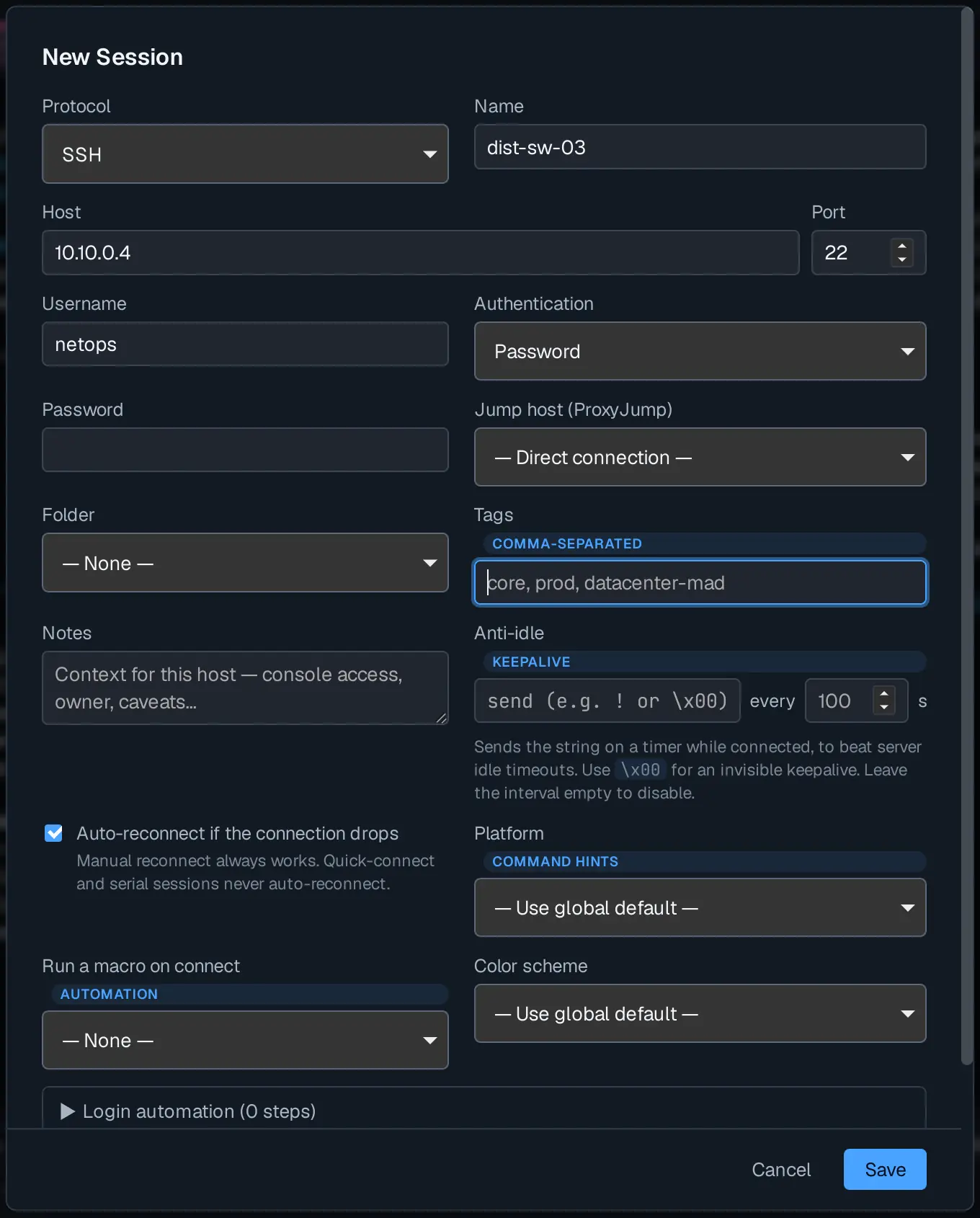
SSH with password, key, agent or 2FA; Telnet; Serial consoles; local shells and, on Windows, WSL distributions. Folders, tags and notes, jump hosts through saved sessions, port forwarding, anti-idle keepalives and macros that run on connect.

  • Import from ~/.ssh/config, PuTTY, MobaXterm and SecureCRT
  • Add devices in bulk from a pasted list or a CSV file
  • Login automation with expect / send steps
  • SFTP browser with streaming transfers
The New Session dialog: protocol, name, host and port, username, authentication, jump host, folder, tags, notes, anti-idle, auto-reconnect, platform, color scheme and a macro to run on connect.
Credential vault

Secrets stay secret

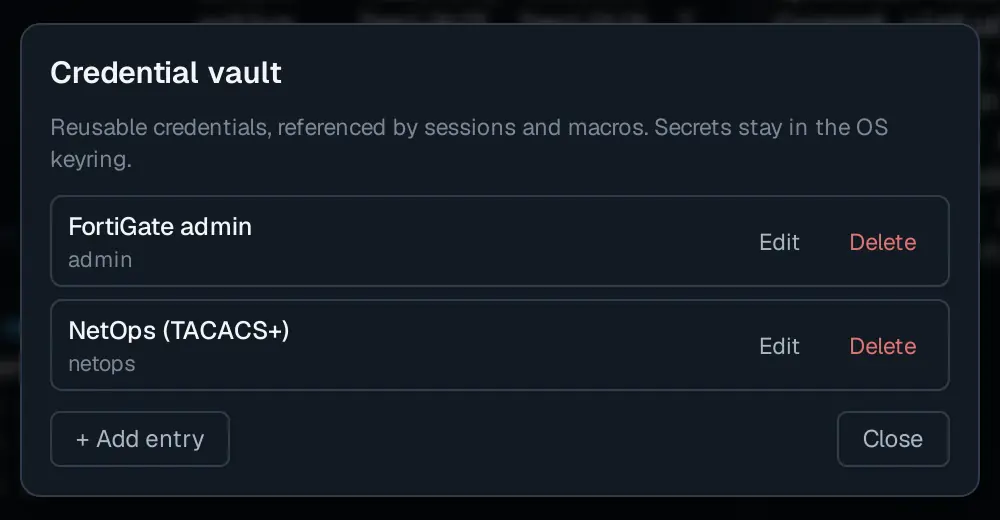
Saved passwords live in an encrypted vault (AES-256-GCM) that only your master password opens. Sessions and macros reference them by name — the secret is resolved in the backend and never reaches the UI, exports or logs.

The Credential vault with two entries, 'FortiGate admin' and 'NetOps (TACACS+)', each with Edit and Delete.
Automation

Python scripts with a safety net

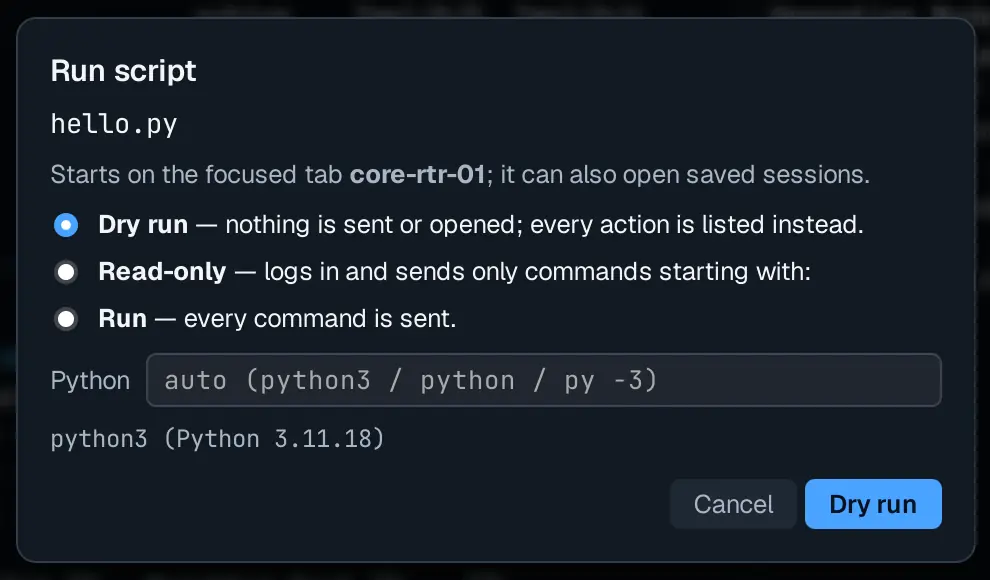
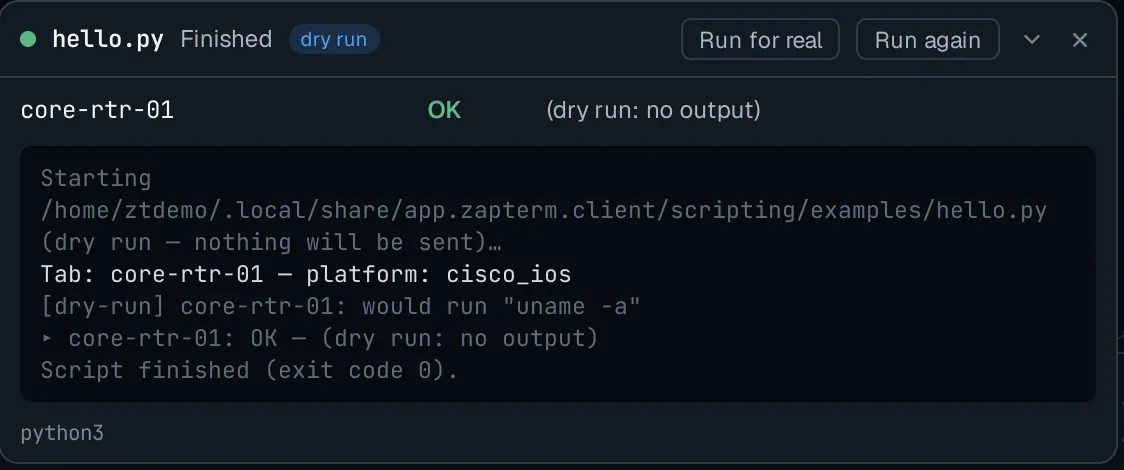
Drive real terminal tabs from Python: open sessions, run commands, wait for prompts, report results. Every run starts in Dry run — nothing is sent, every action is listed — then Read-only (display commands only) and finally Run. Notebooks in VS Code or JupyterLab can connect too.

See how it works, with examples →

The Run script dialog for hello.py with Dry run, Read-only and Run modes.
The script panel after a dry run: core-rtr-01 OK, and a log saying it would run 'uname -a'.
AI assistant

Let an assistant look — you set the limits

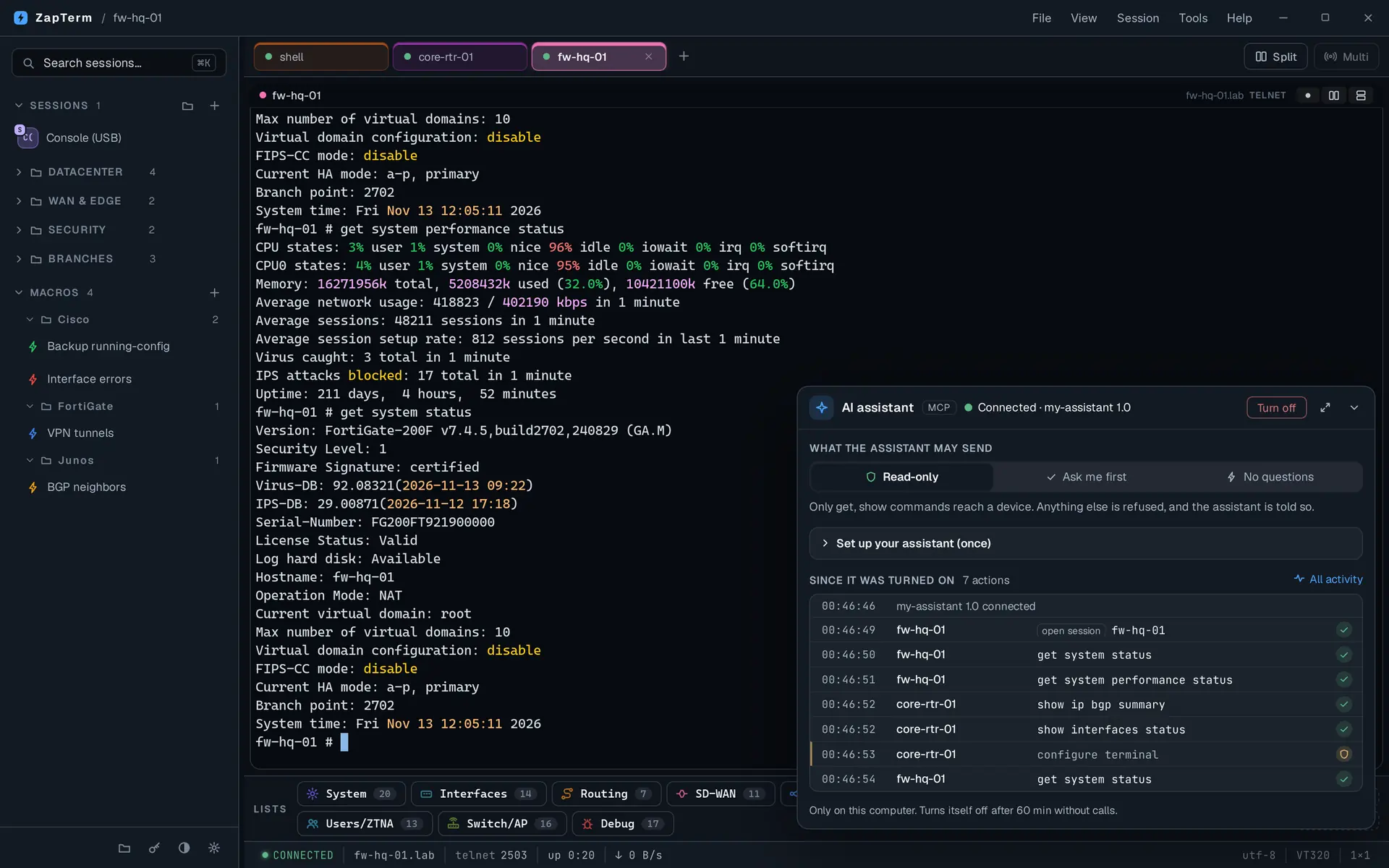
Connect an AI assistant that speaks MCP (Claude Desktop, or any other MCP client) and ask it about your network in plain words. It works through ZapTerm's tabs, where you see every command, and ZapTerm — not the assistant — decides what may be sent.

  • Read-only by default: only display commands reach a device
  • Ask me first: any other command waits for your Yes
  • No tool shows or types a password; ZapTerm logs in from its vault
  • Everything it sent, or tried to send, is kept in a text file on your computer

How to connect one, and what it can do →

ZapTerm with an AI assistant connected in Read-only: the panel lists what it sent since it was turned on — open session fw-hq-01, get system status, show ip bgp summary on core-rtr-01 — and marks 'configure terminal' as blocked.

And more

The little things that add up

Encrypted backup & sync

One passphrase-sealed file with everything, credentials included. Point ZapTerm at any cloud-synced folder to keep installs in step — the provider only sees ciphertext.

Macros

A sidebar library of expect / send / wait macros, in folders, with JSON and MobaXterm import.

Triggers

Match output by regex to notify you, auto-reply or ring the bell.

Search & logging

In-terminal search with regex, plus plain or raw session logs with rotation.

Port forwarding

Local, remote and SOCKS5 dynamic tunnels, saved per session.

Portable mode

A Windows portable .exe that keeps all its data beside it — on a USB stick, if you like.

Rock-solid links

SSH keepalives, auto-reconnect on drop and anti-idle strings for picky servers.

Bring your sessions

Import from ~/.ssh/config, PuTTY, MobaXterm and SecureCRT — folders, jump hosts, keys and tunnels included.

Keyboard first

Every action has a shortcut, and every shortcut can be changed.

Coming from ZAPX?

ZapTerm is what ZAPX became

ZAPX is frozen at 0.42.1 and all new work happens in ZapTerm. On its first start, ZapTerm imports your ZAPX sessions, settings and saved credentials — ZAPX itself is left untouched. ZAPX backups, exports and scripts (import zapx) keep working.

Read the 1.0 changelog

Q&A

Questions people ask

Answers describe the latest version, v1.9.0, and are updated with every release.

Where are my passwords stored, and how safe are they?

In an encrypted vault inside ZapTerm's data folder: every saved password is encrypted with AES-256-GCM under a random key, and that key is protected by your master password (Argon2id). A copy of ZapTerm's data — or of a whole portable folder — is useless without it. Passwords never appear in the interface, in session exports or in logs: sessions and macros refer to them by name and the backend types them for you.

You choose the master password the first time ZapTerm starts: at least 14 characters (a few unrelated words work well). It cannot be recovered, so keep an encrypted backup as a way back. On an installed copy, Remember on this computer keeps the vault key in your operating system's keyring so ZapTerm opens without asking; turn it off in Settings → Vault to type the master password at every start. The portable build always asks, and leaves nothing on the computer it runs on.

Can I push configuration to many devices at once?

Over SSH and Telnet, yes: broadcast types into a whole group of sessions at once; Tools → Send command list… sends a list of commands line by line to the open sessions you pick; and Python scripts can open sessions, send commands and check the output across as many devices as you like — starting in Dry run (nothing sent), then Read-only, then Run.

Does it send any data anywhere?

ZapTerm doesn't. There is no account, no telemetry and no automatic update check: the app only connects to the devices you open, and to GitHub when you use Help → Check for updates. (This website asks GitHub for the latest release to point the download buttons at it.)

The one thing to know: if you connect an AI assistant (Tools → AI assistant (MCP)…, off unless you turn it on), what your devices print in answer to its commands goes to that assistant, and so to its provider. Passwords do not.

Can I bring my sessions from another tool?

Yes: ~/.ssh/config, PuTTY (registry or .reg export), MobaXterm (MobaXterm.ini or .mxtsessions) and SecureCRT (its Sessions folder), with folders, jump hosts, keys and tunnels where the source has them. ZAPX data is imported on first run.

Download

Get ZapTerm

Free software under the GNU GPL v3. Pick your platform:

macOS

Apple silicon (.dmg) Intel (.dmg)

Not yet notarized: after copying it to Applications, run xattr -cr /Applications/ZapTerm.app

All releases and older versions

Feedback

Ideas, bugs, a vendor you'd like supported?

Suggestions and bug reports go on GitHub, where everyone can follow and add to them.

Prefer to write privately?

Send a suggestion or a question straight to the developer.

Good to know

Made for the community, provided as is

ZapTerm is a personal, non-profit project, shared for free with the simple hope of giving network engineers one more good tool to work with.

It is in continuous development: new versions come out often, and bugs can and do appear. It comes with no warranty of any kind, and its author cannot accept responsibility for outages, data loss or any other damage arising from its use.

A terminal sends what you tell it to send: you are responsible for the commands you run and the devices you run them on. Try things in a lab first, keep backups, and read before you press Enter.

The exact terms are in the GPL-3.0-or-later licence (sections 15 and 16). Found a bug or missing something? Tell us — that is how ZapTerm gets better for everyone.